Creating a Company
Learn how to set up your company profile in TSL Toolbox
Setting up your company profile is the first step for company administrators after registration. This guide will walk you through the process of creating your company, adding essential information, and configuring initial settings.
Prerequisites
To create a company, you must have registered with a Company Admin account type. If you registered with a different account type, please contact support to upgrade your account.
Step-by-Step Guide
Navigate to Company Management
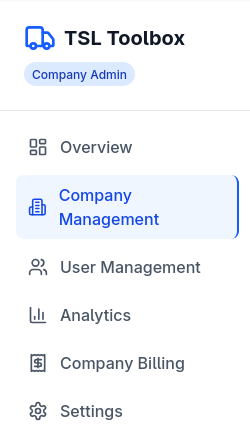
After logging in as a Company Admin, click on the "Company Management" option in the sidebar navigation. If this is your first time logging in, you may be automatically redirected to the company creation page.
Tip:If you don't see the Company Management option, make sure your account has Company Admin privileges.
Fill Out Company Information
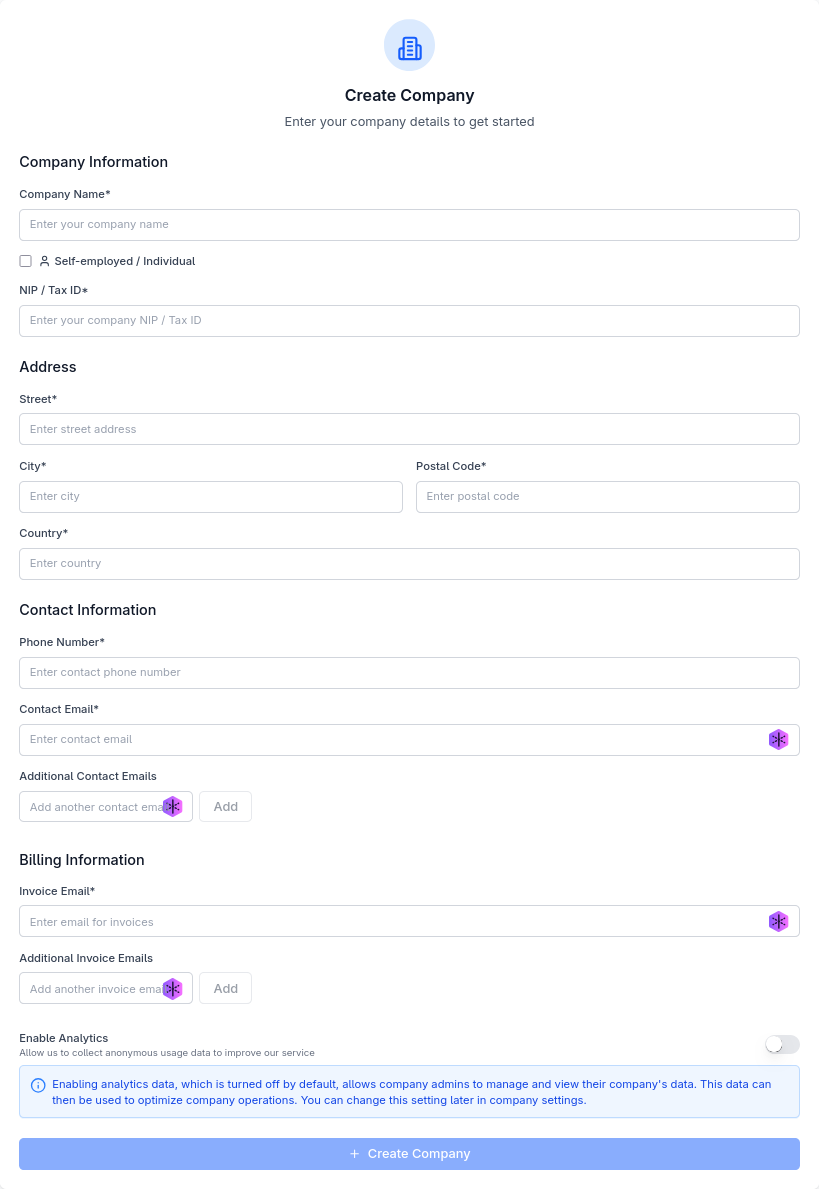
You'll be presented with a form to enter your company details. Complete all required fields:
- Company Name: The official name of your company
- Company Type: Select whether you're a company or self-employed individual
- NIP/Tax ID or PESEL: Your company's tax identification number or personal ID if self-employed
- Address Information: Complete address including street, city, postal code, and country
- Contact Information: Phone number and email address for company communications
- Invoice Email: Email address where invoices should be sent
Configure Additional Settings
You can also configure these optional settings during company creation:
- Additional Invoice Emails: Add multiple email addresses to receive invoices
- Additional Contact Emails: Add multiple email addresses for company communications
- Analytics: Choose whether to enable anonymous usage analytics (off by default)
Important Note
All settings can be changed later from the Company Settings page, but your company name and NIP/Tax ID should be entered correctly as they will appear on invoices.
Create Your Company
After filling out all required information, click the "Create Company" button at the bottom of the form. The system will process your request and create your company profile.
Success!
Once your company is created, you'll be redirected to the Company Dashboard where you can start managing users and settings.
What's Next?
Now that you've created your company, here are the next steps to get the most out of TSL Toolbox:
Frequently Asked Questions
Can I change my company name after creation?
Once created, your company name cannot be changed directly. Please contact support if you need to update your company name.
How many users can I add to my company?
The number of users depends on your subscription plan. You can view your seat limit in the Company Dashboard after creation.
What happens if I make a mistake with my company information?
Most information can be updated from the Company Settings page. For critical changes like NIP/Tax ID, please contact support.
Need Additional Help?
If you're experiencing issues with company creation or have specific questions, our support team is ready to assist you.
Contact Support